Canvas Dashboard Views (Student)
Canvas Dashboard Views (Student)
Your Dashboard is the first landing page you will see in Canvas. Once you are enrolled in a course a new invitation to join the the class will appear in the top of your dashboard as a banner in the existing account we have created for you. It should look like this:

Please click Accept on each invite to proceed with further course access.
Please click Accept on each invite to proceed with further course access.
Quick Comparison: which View Should I Use?
- Depending on your associated institution, your Dashboard may default to one of three views: Card View, List View, or Recent Activity View.
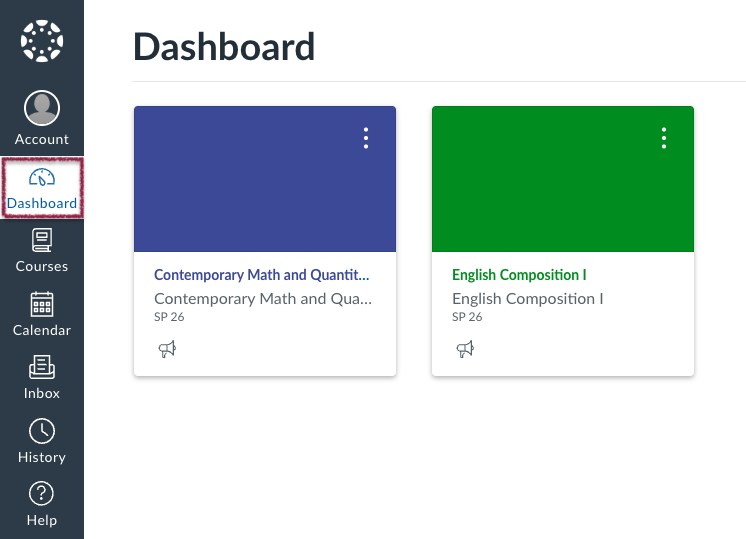
- Card View: displays course cards for quick access to all your favorite courses (the same courses display in the Courses link from the Global Navigation Menu)
- List View: displays all course to-do items in an agenda view
- Recent Activity View: displays all recent activity for all courses
- Canvas Video Guide: How do I use the Dashboard as a student?
How to change your Dashboard view
- In the left-hand Canvas menu, click Dashboard.
- Click the three small dots located on the top-right on your Canvas Dashboard.
- Select Card View, List View, or Recent Activity View.
Dashboard Overview:
Card View (Recommended)
- Card View displays course cards for quick access to your currently active course(s).
- Also includes the Dashboard sidebar (To Do, Upcoming, Recent Feedback, etc.).
- Card view is recommended for new students just starting in Canvas because the other options may only reveal your recent activity or future 'To Do' items that not relevant until the course introduction has been completed.
Recent Activity View
- Recent Activity View displays recent activity across all course(s).
- Also includes the Dashboard sidebar (same sidebar as Card View).
- Depending on your default setup in Canvas, keep in mind Recent Activity View in your Canvas Dashboard is not be preferred for most students first starting out.
List View (Agenda / To Do across all courses)
List View displays course To Do items in an agenda format.
- Defaults to the current date; scroll to view past/future dates; use Today to jump back.
- Use New Activity to jump to older items with new activity.
- When multiple courses have items on the same date, items are grouped by course name and sorted by due time.
- Graded items show the point value.
- Icons help identify item types (e.g. calendar event, announcement, assignment, page, discussion, quiz).
Opening items and courses
- Click an item name to open that To Do item.
- Click a course name to go to the course home page.
Status and “what changed?” indicators
- Items with new activity show an Unread indicator and may include labels like Graded, Replies, or Feedback.
- Past-due graded items may show Missing; late submissions show Late; reassigned work may show Redo.
Marking items complete
- Automatically graded items like module quizzes are marked complete once submitted.
- Non-graded items must be marked complete manually using the checkbox by reviewing the associated course material.
- Use Show completed item to review completed items (they may hide again after refreshing).
Alerts and grades (List View)
- Alert menu: shows graded past-due items across courses; you can dismiss “new” alerts without changing item status.
- Gradebook icon: opens a “My Grades” menu showing current course grades; click a course to open its Grades page.
Dashboard Sidebar (Card View + Recent Activity View)
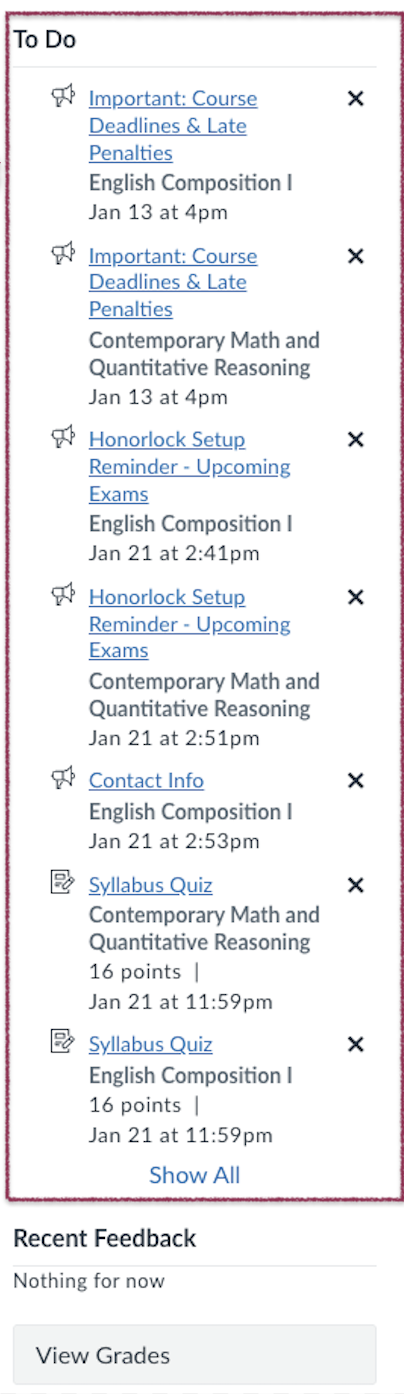
In Card View and Recent Activity View, the Dashboard includes a sidebar that helps you track work and feedback across courses:
Important Notes for Using To Do List
- The sidebar shows action items from all active courses.
- Each sidebar item shows the course name or nickname you choose; clicking the task opens it.
- Notice: For students just starting out, certain prerequisite requirements in a course will only be seen from the "Home" or "Module" menu options and will be needed before unlocking associated tasks.
Course "To Do" Lists and Recent Feedback
- To Do shows up to seven upcoming items (including some ungraded items and announcements, depending on enrollment) and can include items that don’t require an online submission until the due date.
- Recent Feedback shows feedback from your course(s) from the last four weeks.
Managing sidebar items
- Use Show All to view all To Do items (this opens List View).
- Use the Remove icon to dismiss a To Do item (it stays removed from the list).
Global announcements
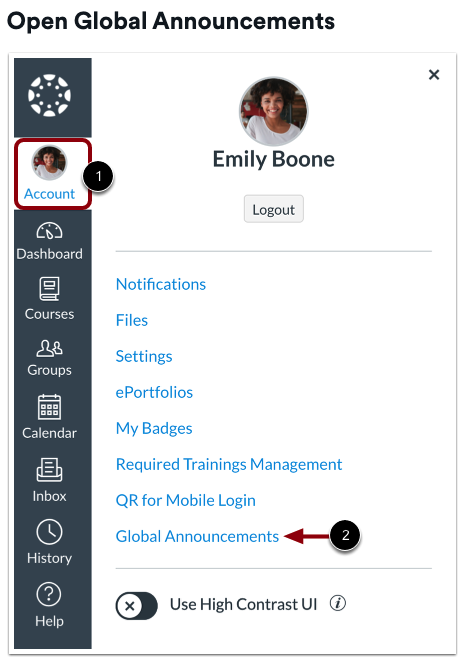
Your Dashboard may include global announcements for important reminders, office closures, other course updates at the very top of the page. You can remove an announcement banner from your Dashboard using the Remove icon / clicking the X button; student can still view dismissed announcements from the Global Announcements page, seen below:

To view these notifications, click Account [1], then navigate to the Global Announcements in the menu [2].
Course Announcements may also be seen on your main Canvas dashboard when they are first posted but once you dismissed it will still be available in your course under "Announcements". As a friendly reminder, students should regularly check the "Announcements" and "Grades" sections of their course(s) for their schedule, important due dates, and more updates related to assignments.
To view these notifications, click Account [1], then navigate to the Global Announcements in the menu [2].
Course Announcements may also be seen on your main Canvas dashboard when they are first posted but once you dismissed it will still be available in your course under "Announcements". As a friendly reminder, students should regularly check the "Announcements" and "Grades" sections of their course(s) for their schedule, important due dates, and more updates related to assignments.
If you have any additional question feel free to email support@tel-education.org for more assistance.